
A virtual makeup app that shows makeup on your face live through the front camera. Try lipstick, blush, eyeshadow, eyeliner and brows in seconds, build a full look and find the shade that suits you. Camera images are processed on your phone only.
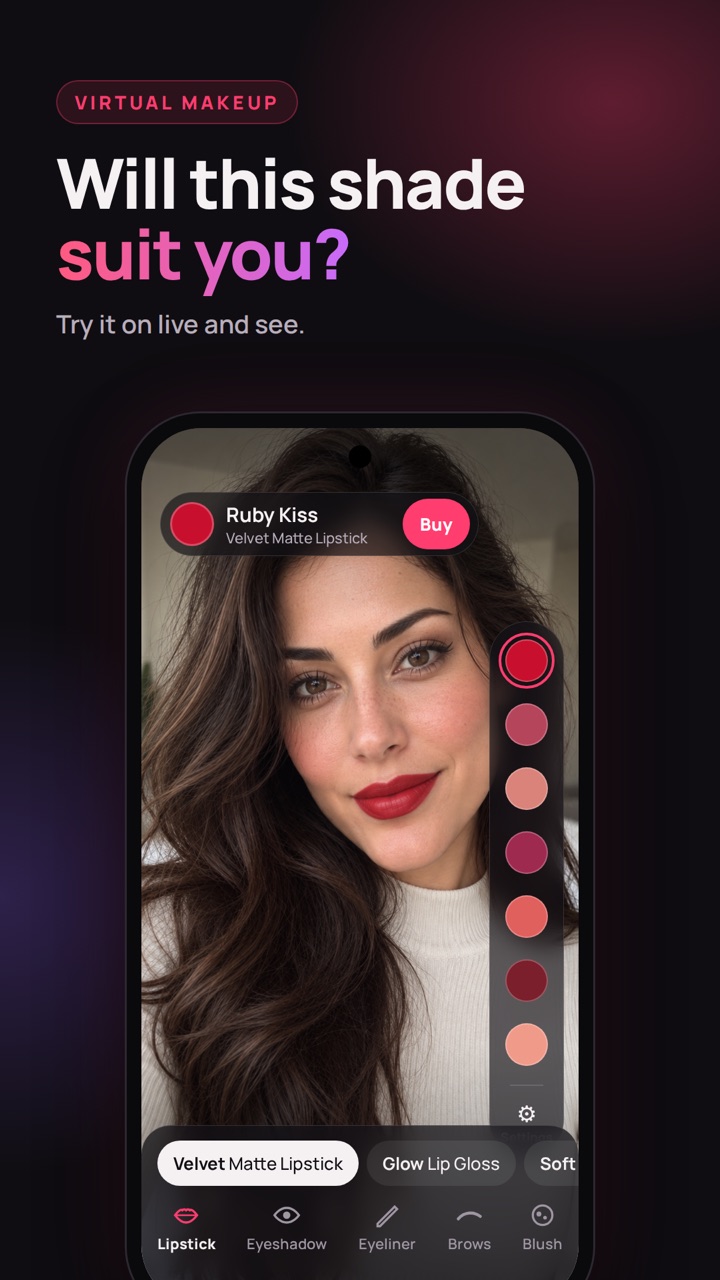
Will this shade suit you? 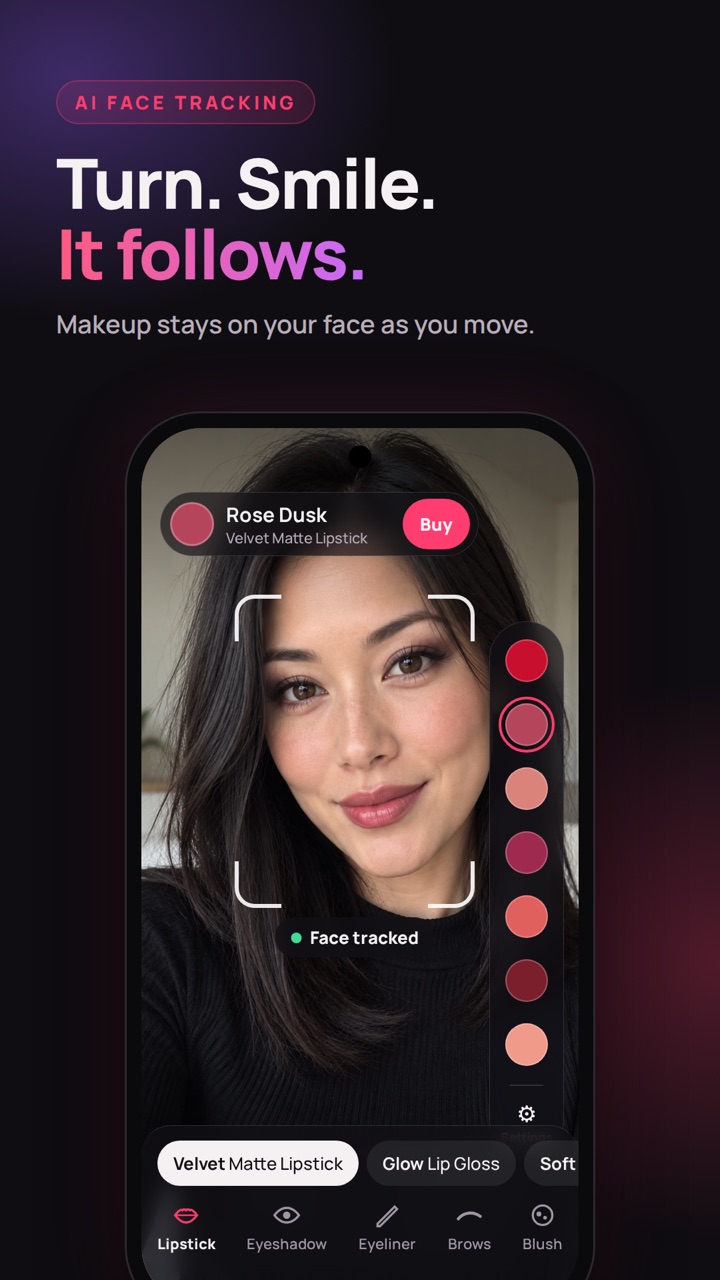
It follows your face 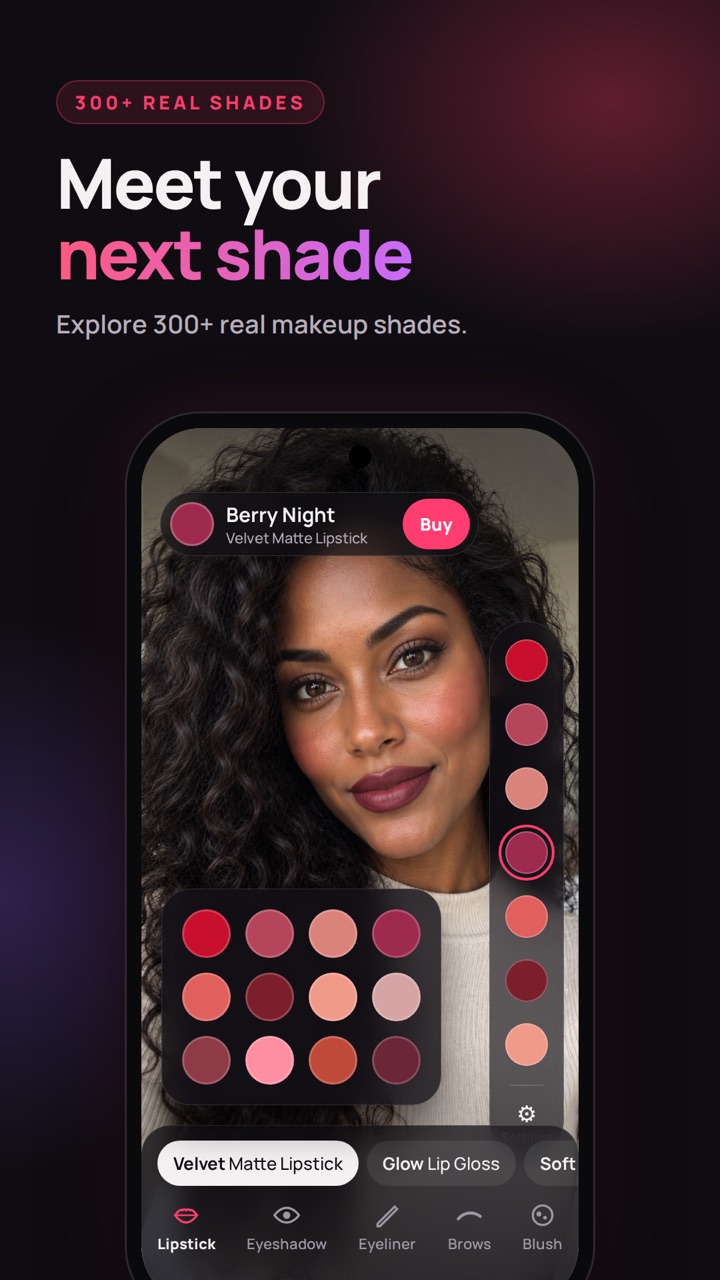
300+ real shades
What’s inside
- 300+ real shadesMatte, glossy, natural and ombre lipsticks, with an optional lip liner.
- Full makeup looksCombine blush, eyeshadow, eyeliner and brows with your lipstick.
- Live face trackingMakeup stays on your face as you turn and smile.
- Camera stays on your phoneFace images are processed on the device and never uploaded.
How MakeUpTakeUp works
MakeUpTakeUp is a virtual try-on app. Instead of guessing from a swatch on a website, you see a shade on your own face, live, through your phone’s front camera. Here is the basic flow.
- Frame your face. Open the app and hold the phone so your face fits inside the frame on screen. The app tracks points on your face so the makeup can follow you as you move.
- Pick a category. Choose from lipstick, eyeshadow, eyeliner, brows and blush along the bottom of the screen.
- Pick a shade. Swipe through the shades for that category and tap one. It appears on your face straight away, and it stays in place when you turn your head or smile.
- Choose a style and fine-tune it. Each category has its own styles. Lipstick comes in natural, matte, glossy, ombre and bold finishes; eyeshadow in natural, smoky, cut crease, shimmer and gradient; eyeliner from thin to winged, cat eye and double; brows from natural to feathered; and blush from natural to draping and contour. Sliders let you adjust intensity and blend, lipstick has a lip liner switch, and blush can be moved horizontally and vertically.
- Build a full look. Categories stack, so you can wear a lipstick, a blush, an eyeliner and a brow style at the same time. A single button clears all makeup when you want to start over.
- Save or share. Take a photo to save the look to your gallery, or share it.
If you like a shade, the product catalog lets you search by brand, product or shade name, and each product can show stores that sell it. You can set your shopping country in the settings so the stores match where you live.
Tips for more realistic results
- Face a window or a soft light. Even, natural light from the front gives the most faithful colors. A strong lamp from one side or a dim room shifts how every shade looks.
- Hold the phone at eye level. A straight-on view lets face tracking place lipstick and liner most accurately. Looking up from below distorts the shape of the lips and brows.
- Start with intensity in the middle. Real makeup is rarely at full strength. Turn intensity down for an everyday look and up only for bold evening shades.
- Compare two shades side by side in time, not memory. Tap one shade, take a photo, tap the next, take another, then compare the photos. Memory is a poor judge of subtle differences.
- Try a full look before buying one product. A lipstick can look very different next to a stronger blush or eyeliner. Build the look you actually plan to wear.
- Move a little. Turn your head and smile while wearing a shade. A color that looks good in one still pose can look different from another angle.
Common mistakes
- Judging color under a yellow bulb. Warm indoor light makes pinks look coral and cool shades look muddy. Check important choices in daylight.
- Leaving every slider at maximum. Full intensity on every category looks heavy on camera and in real life. Adjust each one.
- Forgetting that screens differ. A phone display is not a perfect color match for a physical product. Use the app to narrow down shades, then check the real product where you can.
- Ignoring the shopping country. If stores in the list don’t ship to you, check that the shopping country in settings is set correctly.
About virtual makeup try-on
Virtual try-on uses face tracking to find features such as the lips, eyes and brows in a live camera image and draws color on top of them in real time. It is a quick way to narrow down shades without testing physical samples, though lighting and screen quality always affect how faithful the colors look.
Using the app and privacy
MakeUpTakeUp is a phone app. It needs the front camera to work, and the camera image and face points are processed on the phone itself. Photos you choose to take are saved to your own gallery.
In the settings you can change the app language, set your shopping country, read the privacy policy and send a message to the team through a contact form.
FAQ
Which makeup categories can I try?
Five: lipstick, eyeshadow, eyeliner, brows and blush. Each has several styles, and you can wear them together as one look.
Can I adjust the shade after applying it?
Yes. Open the settings for a category to change the style, intensity and blend. Lipstick has a lip liner switch, and blush can be moved horizontally and vertically.
How do I remove makeup from the preview?
Use the clear all button to remove everything at once, or use the remove option inside a category to take off just that one.
Which languages does the app support?
The app is available in English, Turkish, German, Spanish, French, Italian, Portuguese and Russian. By default it follows your phone’s language, and you can change it in the settings.
Guides for MakeUpTakeUp
FAQ
Are my camera images uploaded?
No. Camera frames and face points are processed on your phone only and are never stored or shared. Photos you take are saved to your own gallery.
Can I buy the shades I try?
Yes. Each shade links to an online store. The store’s own privacy policy applies there, and some links may be affiliate links.